For the trial version, email ID and mobile number verification are enough. So click the link shared below and start creating the SAP account.
Link: https://www.sap.com/products/technology-platform/trial.html
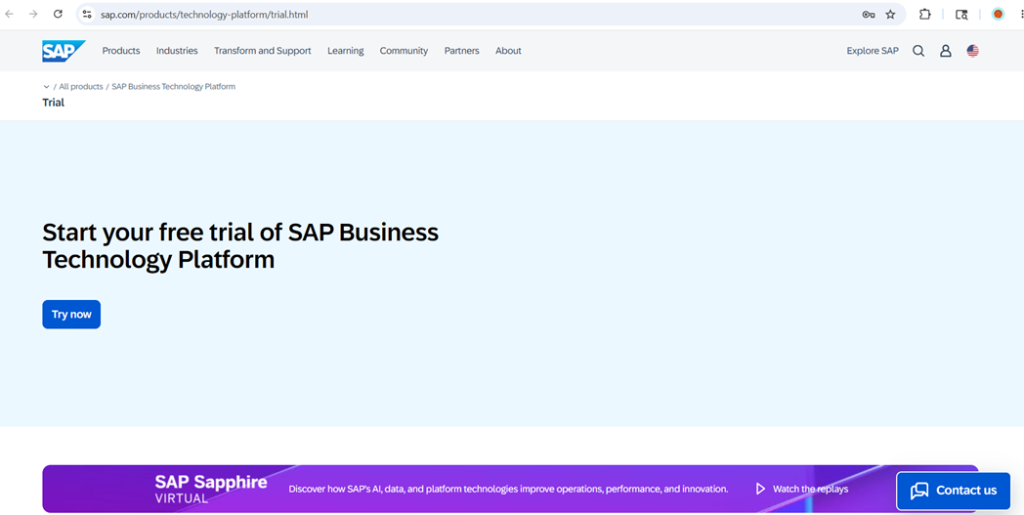
As shown in the screenshot above, click on “Try Now.” Then, a screen like the one shown below will appear.
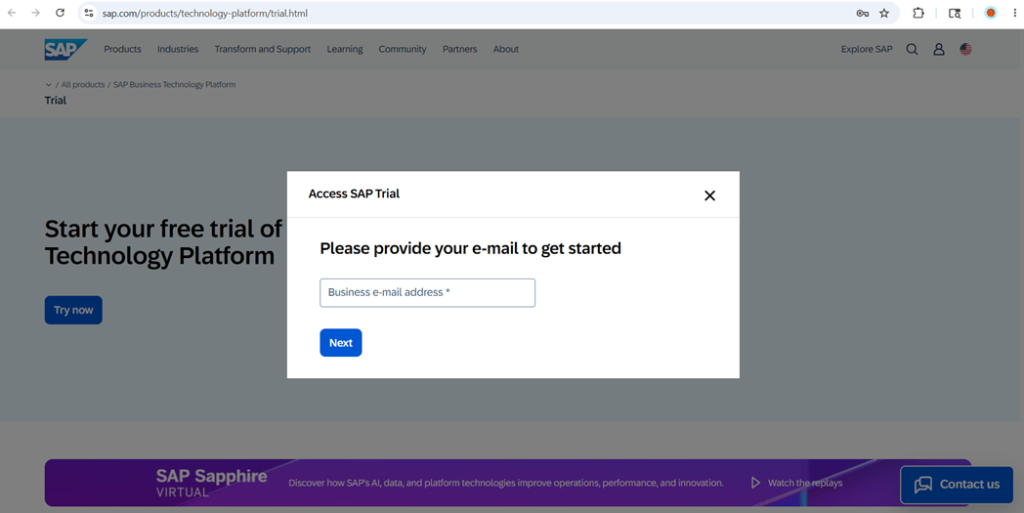
Now, enter your email ID and click on “Next.”
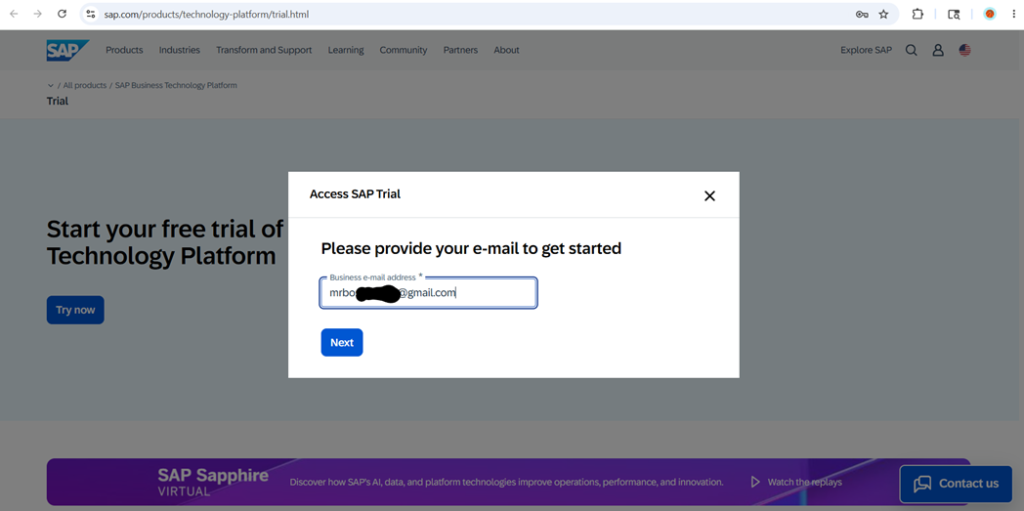
Then, a popup for general details will appear. Enter the required details and click on “Submit.”
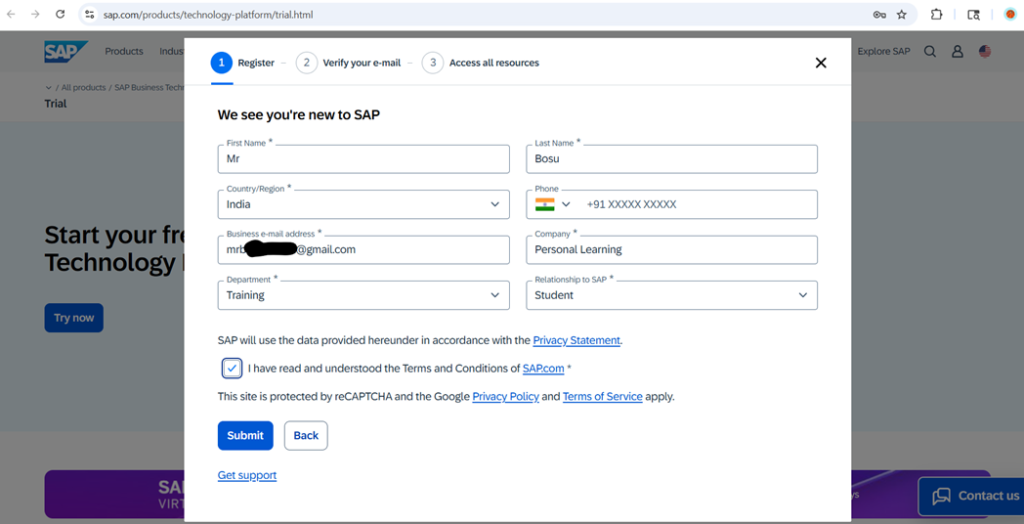
Then, enter details like First Name, Last Name, Country, Company, Department, and Relationship with SAP, and click on “Submit.”
Note: While creating the SAP BTP Trial account, it is not necessary to enter a real company name in the Company field. You can use the details below:
- Company Name: Personal Learning
- Department: Training
- Relationship to SAP: Student
After entering the required details and clicking on “Submit,” a popup box saying “Verify Email Address” will appear.
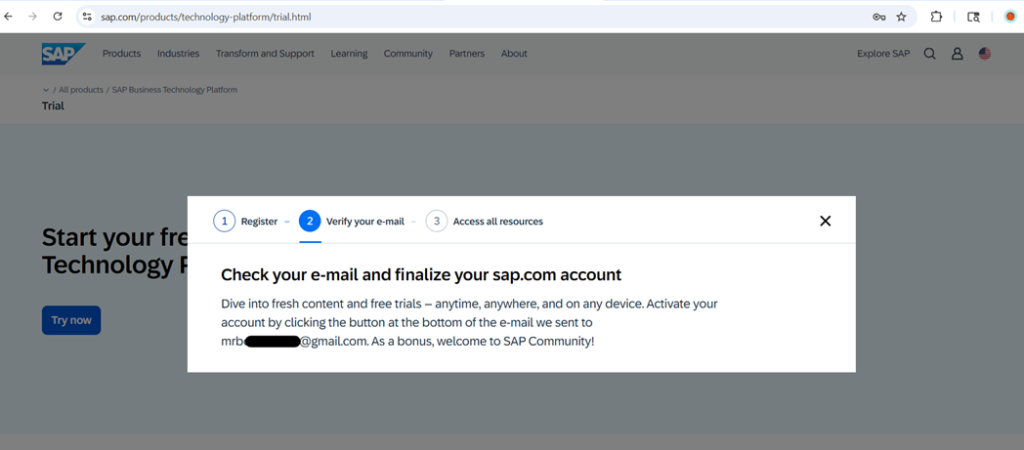
Then, a verification email will be sent to the email ID you provided, as shown below.

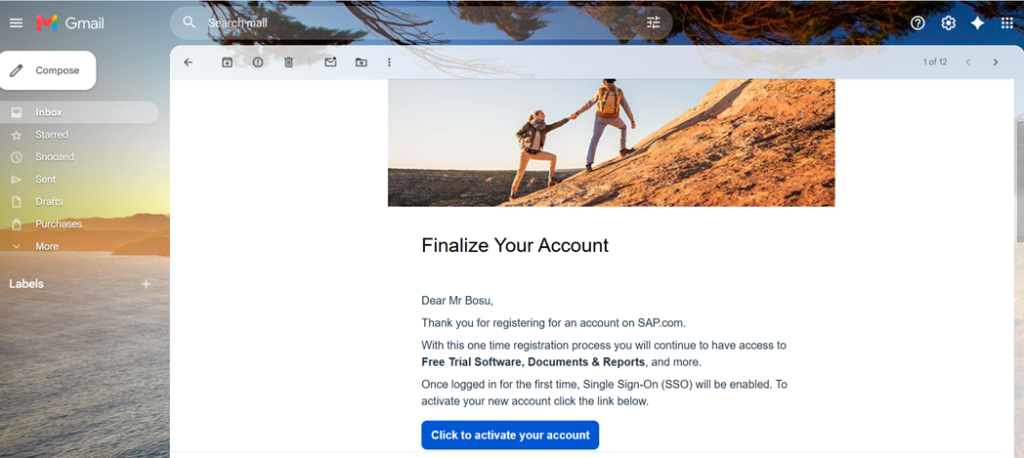
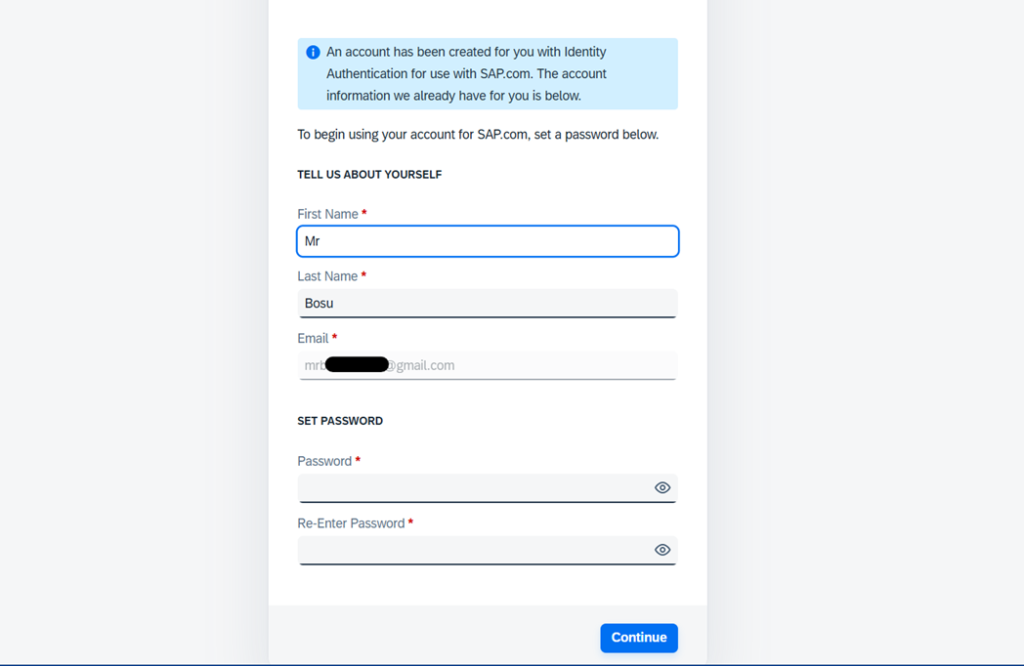
After clicking on the “Activate Your Account” link, another popup box will appear asking you to set a password. You can create and set a password of your choice.
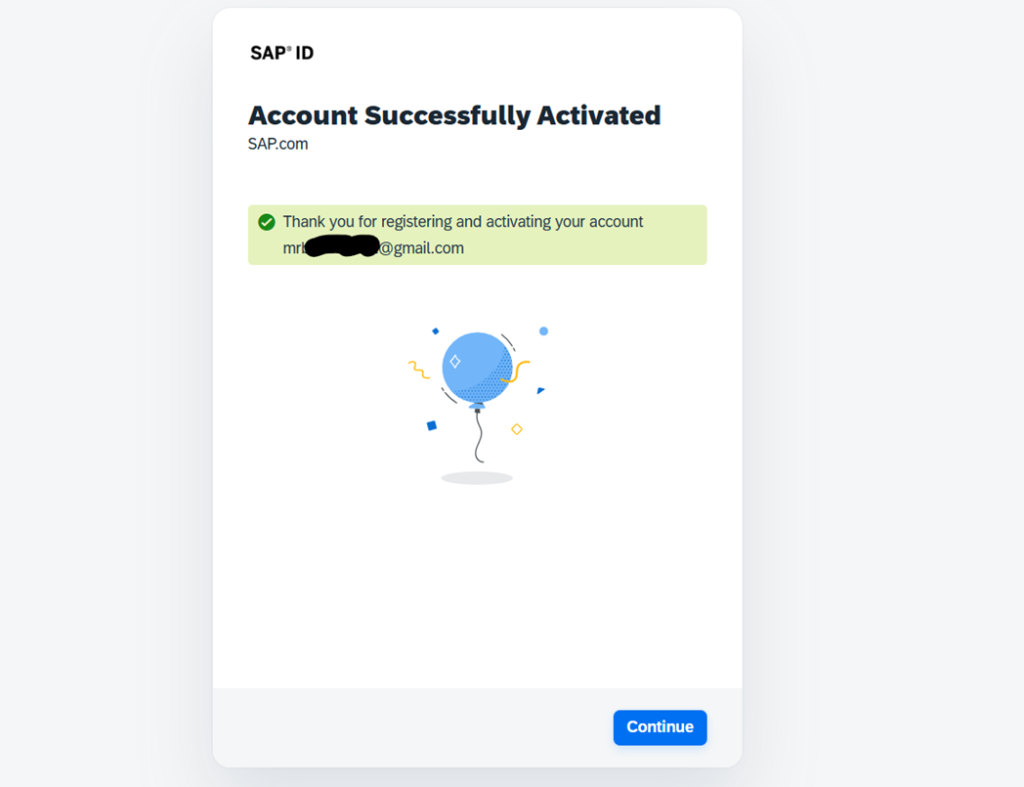
After entering your preferred password, you will see a message saying “Account Successfully Activated.”
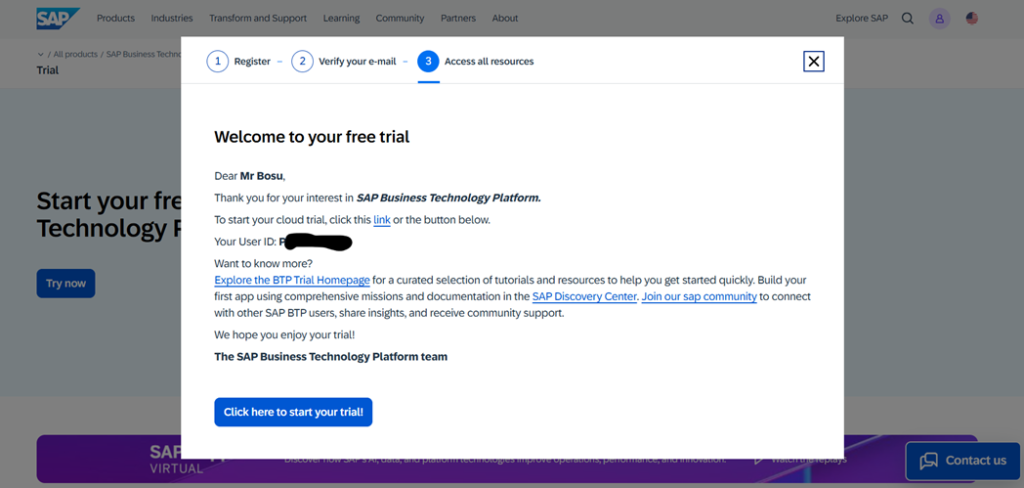
When you click on “Continue,” the “Welcome to Your Free Trial” details page will appear.
When you click on “Start Your Trial,” you will be taken to the mobile number verification screen.
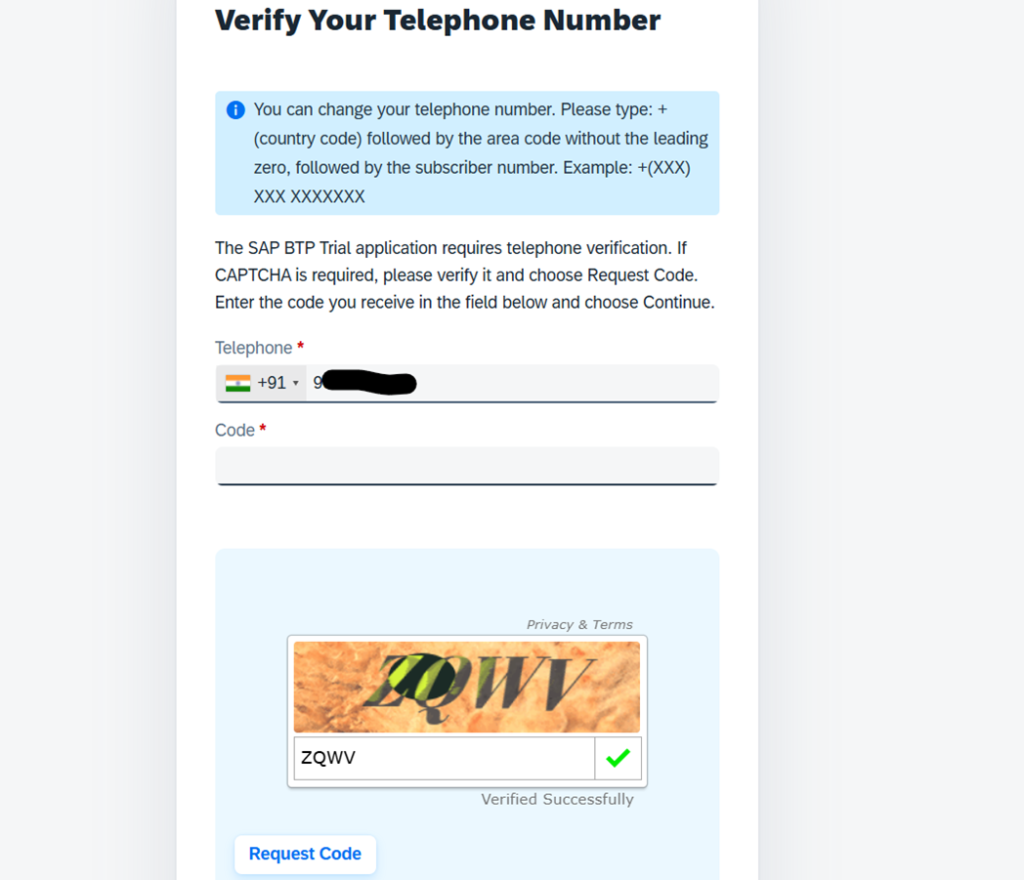
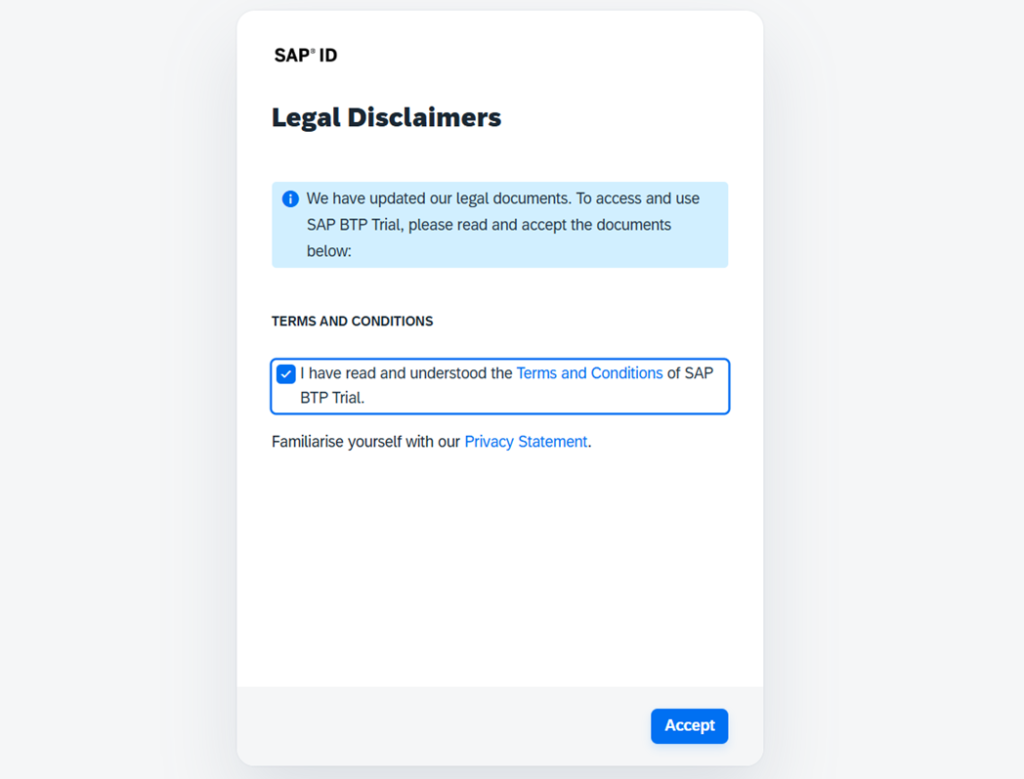
After completing the mobile verification, on the next screen, click on the Terms and Conditions checkbox and then click on “Accept.”
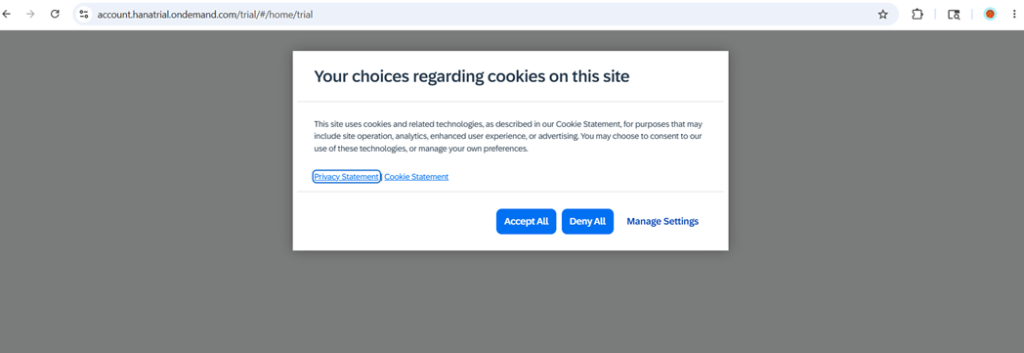
On the next screen, click on “Accept All.”
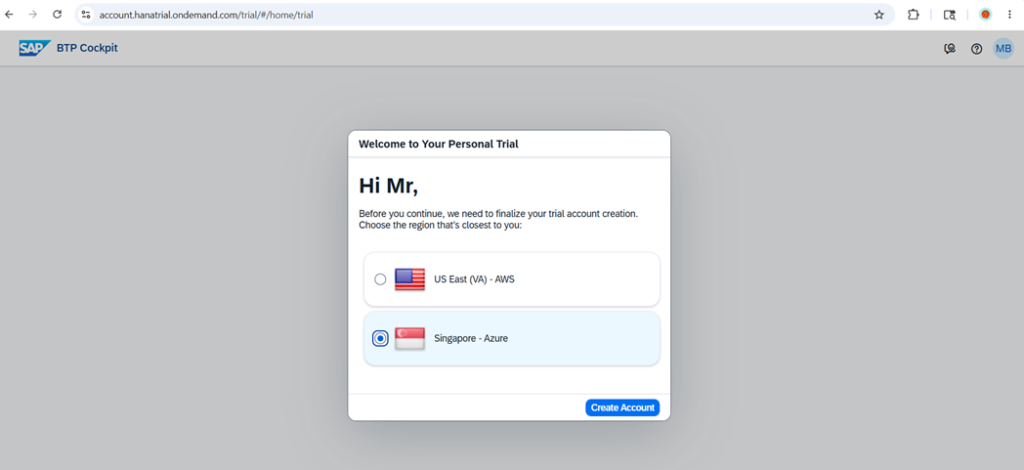
Then, you will see a “Welcome to Your Personal Trial” page. There, you will find two region options. Select “Singapore – Azure” and click on “Create Account.”
Note: We recommend selecting “Singapore – Azure” because it is the closest region to India, which provides better speed and performance.
Next, a popup box will appear showing that your personal account is being created.
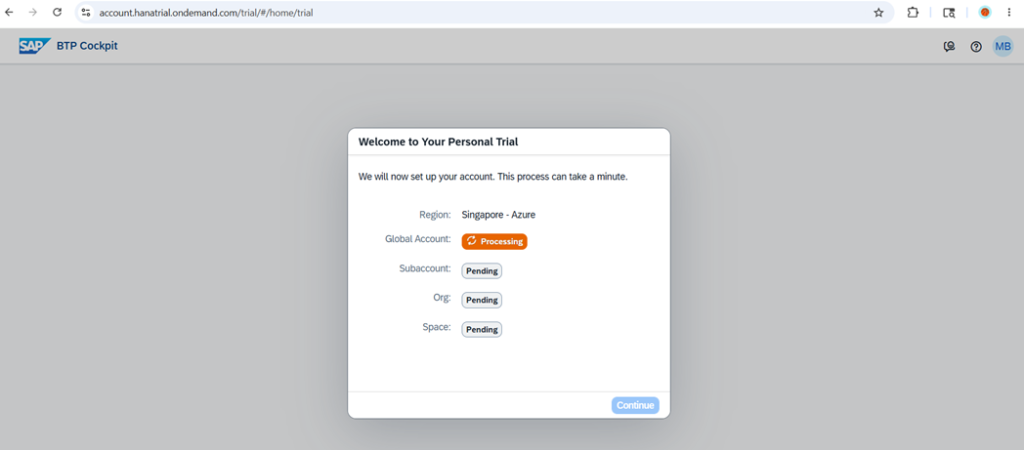
Once the account creation process is completed, click on “Continue.”
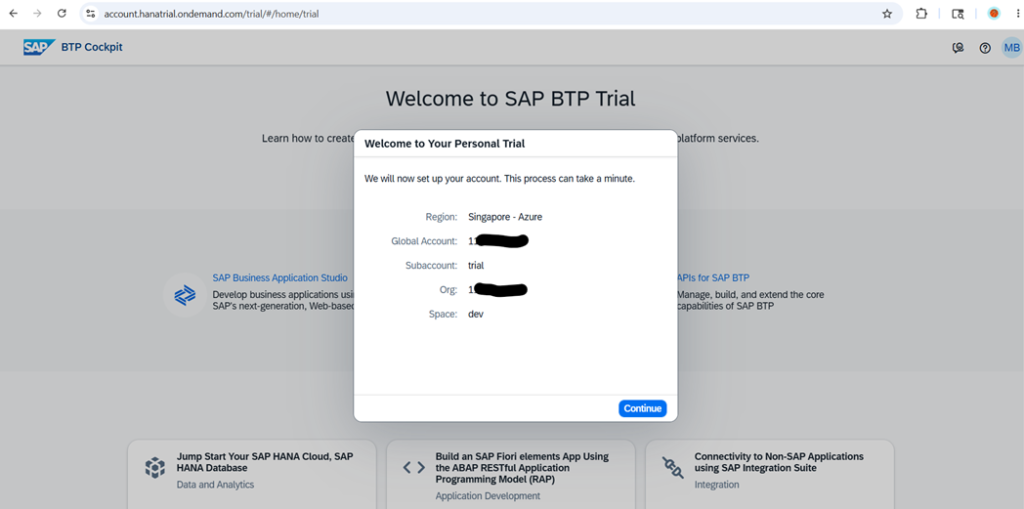
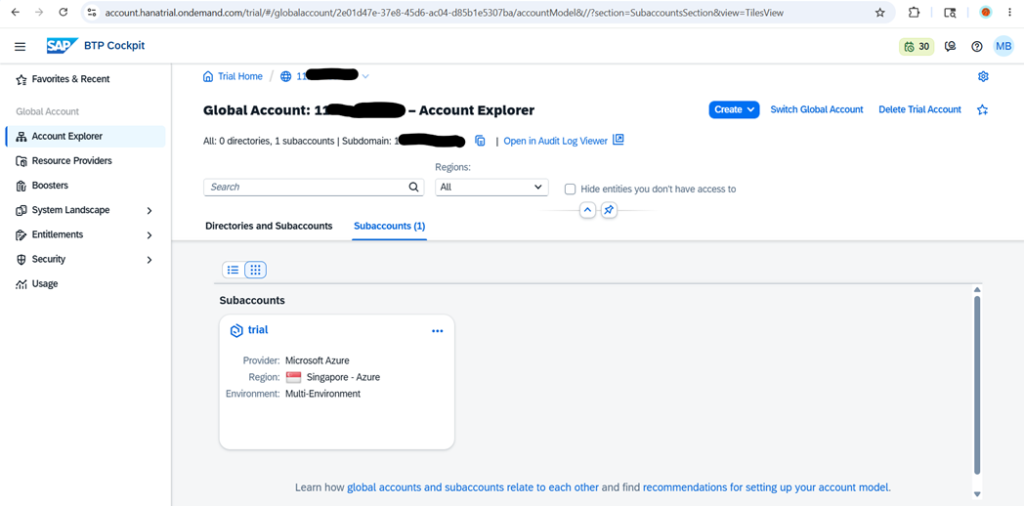
Then, you will see a link saying “Go to Your Trial Account (https://account.hanatrial.ondemand.com/trial/#/home/trial).” Click on it.
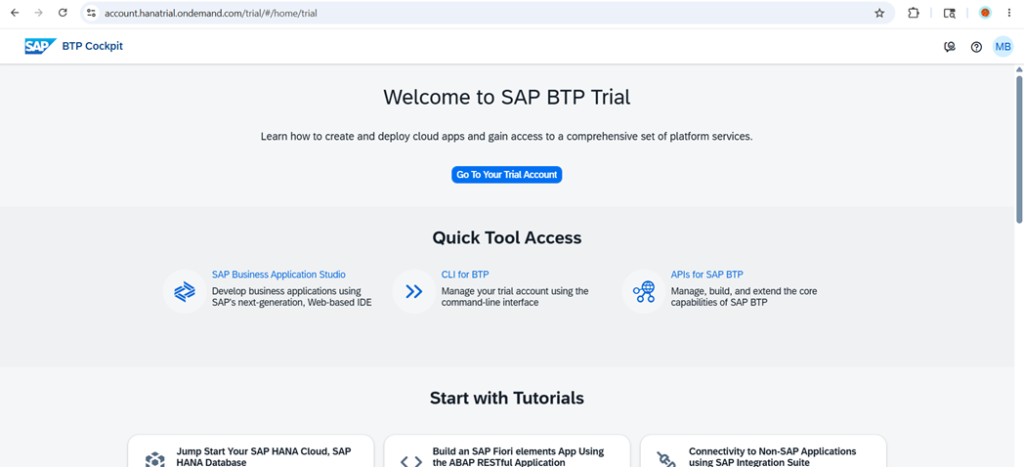
After clicking on it, the SAP BTP Cockpit will open. From there, we will start all our work and activities.